
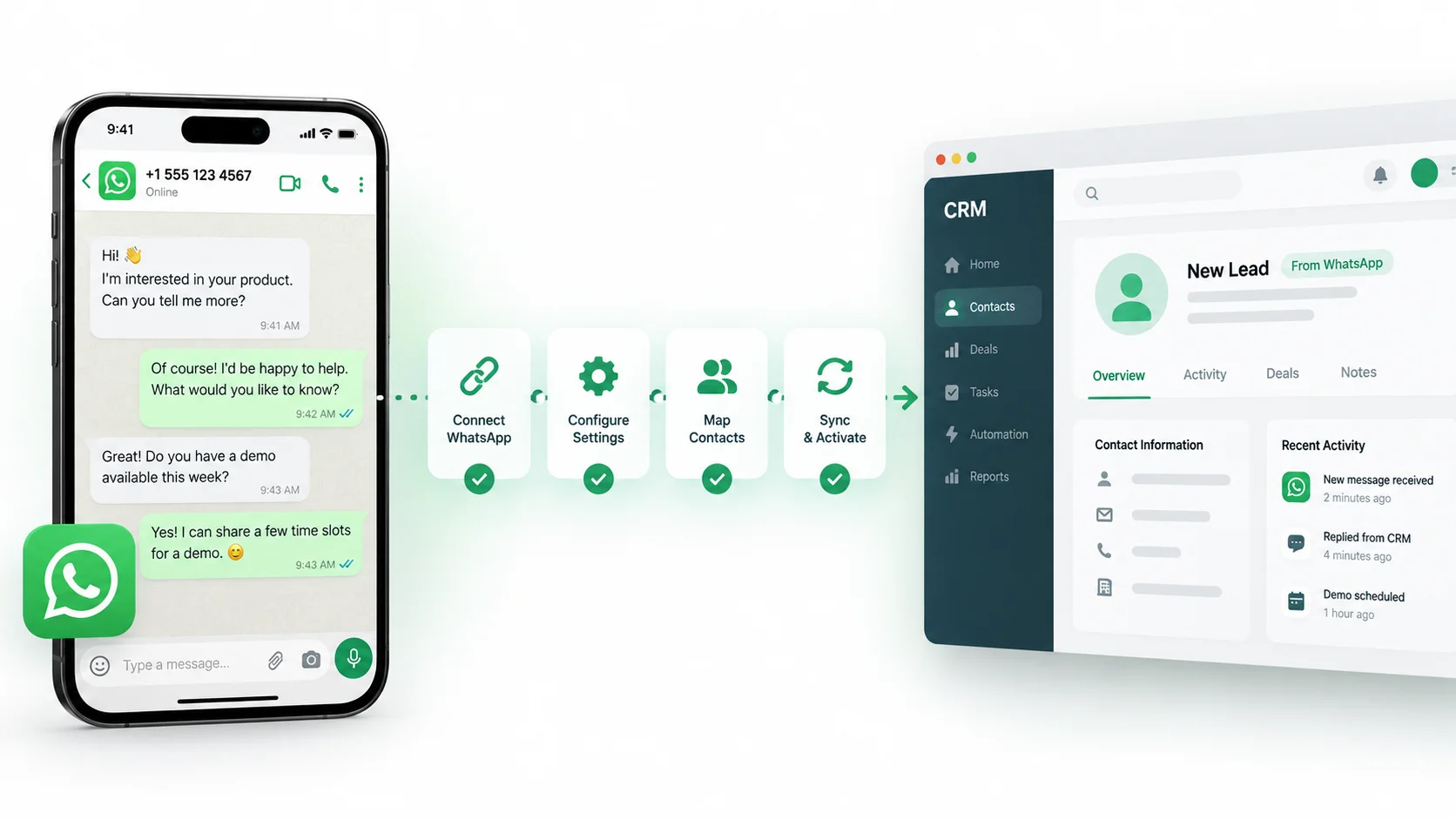
Connecting WhatsApp to a CRM is not just a technical integration. Done well, it changes how customer conversations are owned, tracked and followed up across a team.
This guide explains the full process: what you need before connecting, how the onboarding usually works, what data should sync, how to design routing and automation, and what to test before going live.
What does it mean to connect WhatsApp to a CRM?
When WhatsApp is connected to a CRM, incoming and outgoing customer conversations become part of a structured customer record instead of remaining only inside a phone or standalone inbox.
A CRM can then connect the conversation with:
- contact information
- previous conversations
- lead or customer status
- assigned team member
- tickets and internal notes
- orders or ecommerce context
- automation workflows
- analytics and follow-up activity
If you want the broader explanation first, read our WhatsApp CRM guide.
What you need before connecting WhatsApp to a CRM
The exact requirements depend on the platform, but most business-grade setups involve some combination of the following:
- a business phone number that can be used for WhatsApp Business
- a Meta business account or eligible WhatsApp business setup
- the CRM or conversation platform you want to connect
- administrator access to both systems
- a clear idea of who should receive and manage incoming conversations
The last point is easy to overlook. A technically successful connection can still fail operationally if nobody has defined ownership, routing or response expectations.
Step 1: Decide which WhatsApp setup you actually need
Small businesses with one person answering a limited number of messages may be fine with the WhatsApp Business app. Teams that need shared access, routing, integrations or structured automation usually need the WhatsApp Business Platform connected to a CRM or customer-conversation tool.
Before integrating, define:
- how many people need access;
- whether the same number will be used by several agents;
- which departments will handle conversations;
- which business systems need to connect;
- whether you need outbound templates, campaigns or notifications.
Step 2: Connect the WhatsApp business account
Many modern platforms use an embedded onboarding flow. Instead of manually copying technical credentials, the business signs into its Meta account, selects or creates the relevant business assets, chooses the WhatsApp number and grants the required permissions.
The exact screens differ by provider, but the goal is the same: authorize the CRM to send and receive WhatsApp business messages on behalf of the connected business account.
Do not use unofficial browser extensions or tools that imitate WhatsApp Web if you need a stable business workflow. Official integrations are designed around the WhatsApp Business Platform and its messaging policies.
Step 3: Decide what customer data should be created or updated
A CRM connection becomes useful when the conversation creates or updates the right customer record.
At minimum, most teams should capture:
- customer name
- WhatsApp number
- conversation history
- source or channel
- owner or assignee
- tags or labels
- last interaction date
Depending on the business, you may also want fields for location, service interest, order number, lifecycle stage, preferred language or qualification status.
Do not create dozens of fields simply because the CRM allows it. Every field should support a real decision or workflow.
Step 4: Build the shared inbox around ownership
One of the biggest reasons to connect WhatsApp to a CRM is to move away from “everyone sees everything and someone eventually replies.”
A useful shared inbox should answer:
- Who owns this conversation?
- Has someone already replied?
- What status is it in?
- Does another department need to take over?
- Is there a follow-up required?
Simple assignment rules can prevent duplicate replies and missed enquiries before you add any advanced automation.
Step 5: Set up routing rules
Routing determines where a conversation goes when it enters the CRM.
Common approaches include:
| Routing method | Example |
|---|---|
| Round robin | Distribute new leads evenly across available agents. |
| Department | Order questions go to Support; new enquiries go to Sales. |
| Intent | Route based on what the customer is asking for. |
| Customer type | VIP or existing customers go to a dedicated queue. |
| Location | Assign enquiries to the appropriate regional team. |
Start with rules your team can explain in one sentence. Complex routing that nobody understands becomes hard to maintain.
Step 6: Configure approved message templates
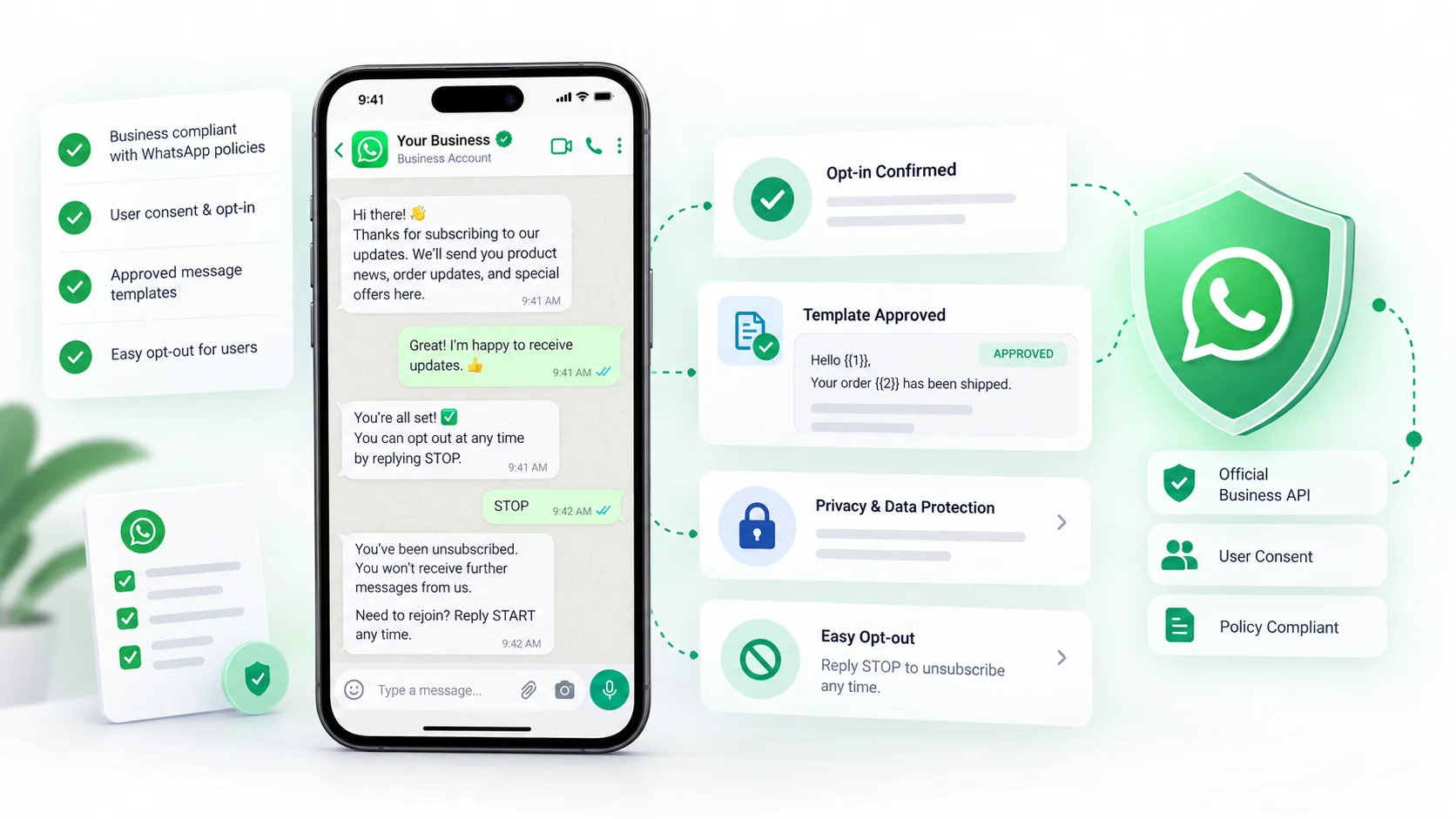
WhatsApp’s current Business Messaging Policy distinguishes customer-service replies inside the 24-hour window from business-initiated messages outside that window. Approved message templates are generally required for business-initiated communication outside the customer-service window.
Templates can be useful for:
- order updates
- appointment reminders
- service notifications
- follow-up messages
- approved marketing communication where consent requirements are met
Review the official WhatsApp Business Messaging Policy because message rules and pricing can change.
Step 7: Add automation only after the basic workflow works
Once messages, ownership and customer records are working correctly, automation can remove repetitive work.
Useful early automations include:
- welcome and out-of-office responses
- automatic assignment
- ticket creation
- lead qualification
- follow-up reminders
- order-status workflows
- human handoff
For a deeper workflow framework, see our WhatsApp automation guide.
Step 8: Connect the systems that provide customer context
The CRM becomes more useful when agents do not have to search elsewhere for basic information.
For ecommerce, that may mean connecting Shopify or WooCommerce so the team can see order context. For service businesses, it may mean connecting a booking system, pipeline or internal database.
DotsFlow is designed around that connected model. You can review supported channels and commerce connections on the DotsFlow integrations page.
Step 9: Test the complete customer journey
Do not only test whether “a message appears in the CRM.” Test the whole process.
- Send a message from a new customer number.
- Confirm the contact is created correctly.
- Check whether the conversation is assigned to the right person.
- Reply from the CRM.
- Verify the response reaches WhatsApp.
- Check whether notes, tags and status updates are saved.
- Test a handoff between two team members.
- Test an after-hours message.
- Test an approved template where applicable.
- Confirm analytics and conversation history update correctly.
Step 10: Define operating rules for the team
Technology cannot replace operating discipline.
Before launch, agree on:
- target response time
- who owns new conversations
- when to reassign or escalate
- how to use tags and statuses
- when a conversation is considered resolved
- who manages templates and automation
A CRM works best when the team uses the same definitions.
Common WhatsApp CRM integration mistakes
Connecting the channel before designing the workflow
The result is usually a prettier inbox with the same operational problems.
Creating too many automations on day one
Start with assignment, visibility and simple routing. Add sophistication only after the team understands the flow.
Ignoring consent and messaging policy
A CRM should help operationalize policy-compliant communication, not encourage unrestricted messaging.
Not deciding who owns the customer record
Duplicate contacts and conflicting fields become a problem when several systems are allowed to overwrite each other without rules.
Measuring activity instead of outcomes
Message count is not the same as sales, resolution or customer satisfaction.
How long does it take to connect WhatsApp to a CRM?
The technical connection can sometimes be completed quickly, but production readiness depends on the complexity of the workflow.
A small team with one number and simple assignment may be ready quickly. A larger business with multiple departments, ecommerce integrations, templates, routing and automation should expect more testing and configuration.
The useful benchmark is not “How fast can we connect?” but “How fast can we connect without creating customer-facing mistakes?”
Frequently asked questions
How do I connect WhatsApp with CRM?
Use an official WhatsApp Business integration supported by the CRM, authorize the business account, configure the shared inbox and map customer data and workflows.
Can WhatsApp be integrated with an existing CRM?
Often yes, but the method depends on the CRM. Some platforms have native integrations, while others use APIs, middleware or a conversation platform that sits between WhatsApp and the CRM.
Which CRM is best for integrating with WhatsApp?
The best option depends on whether you prioritize shared inbox collaboration, ecommerce context, sales pipelines, automation, multiple channels or enterprise integrations.
Do I need coding?
Many modern platforms provide no-code or embedded onboarding for the initial WhatsApp connection. Custom data sync or complex workflow integration may still require technical work.
Final takeaway
The connection itself is only the beginning. A successful WhatsApp CRM setup should make customer ownership clearer, context easier to access and follow-up more consistent.
Design the operating model first, then connect the technology around it. If you want to see how DotsFlow connects customer channels, commerce context and team workflows, explore DotsFlow CRM or book a demo.




1 Comment
[…] For the full integration process, see our guide to connecting WhatsApp with a CRM. […]